
Cajun Craft Software

SN Dot-Walk Columns

Get the related ServiceNow data you need into the list you already use.

The v1.5.0 update is being prepared. Store publication is pending.

1

Choose

Open Personalize List Columns. Search the available fields and tick the ones you want, or click › beside a field such as Caller to browse the record it points to: Caller, then Manager, then Email. Drag columns in the Selected pane to put them in order.
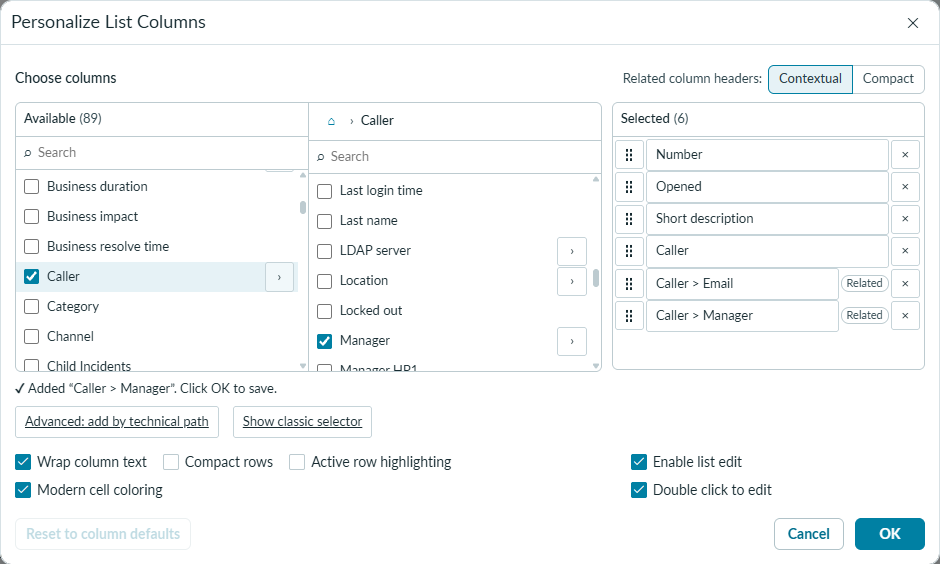
The Personalize List Columns dialog with three panes: available fields with Caller ticked, the fields under Caller with Manager ticked, and the selected columns with drag handles, including Caller > Email and Caller > Manager
Tick a field, or browse into Caller and tick Manager.

On Requested Item and Catalog Task lists, open Variables, pick a catalog item, and tick the questions you want as columns.
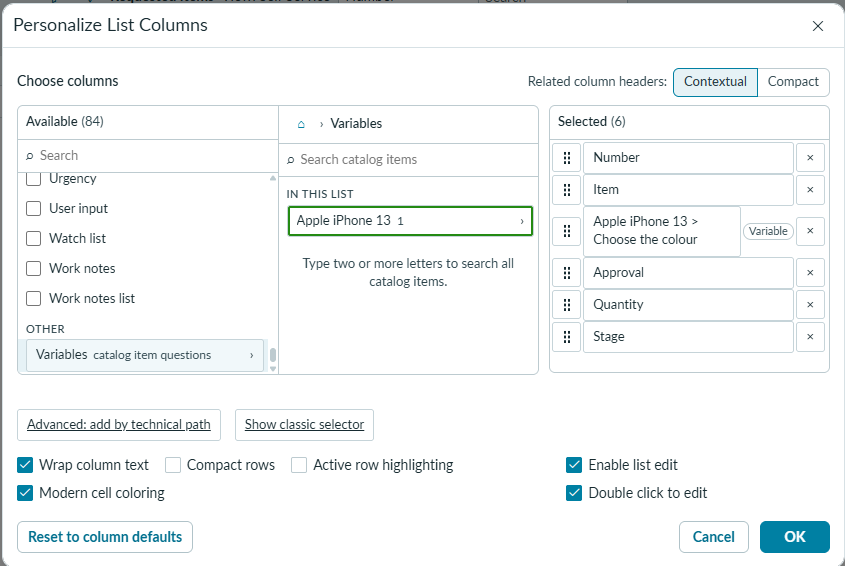
The column chooser on a Requested Items list: Variables is open, Apple iPhone 13 is listed as a catalog item in this list, and its Choose the colour question is a selected column
Catalog variables: pick the item, then its questions.
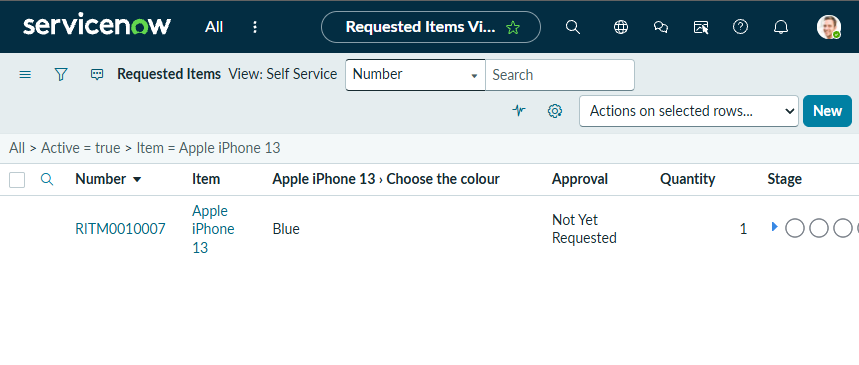
A Requested Items list with a column headed Apple iPhone 13 › Choose the colour showing the value Blue
The variable is now a column in the list.

ServiceNow's own selector is still there: Show classic selector puts it back above the chooser, and both stay in step.
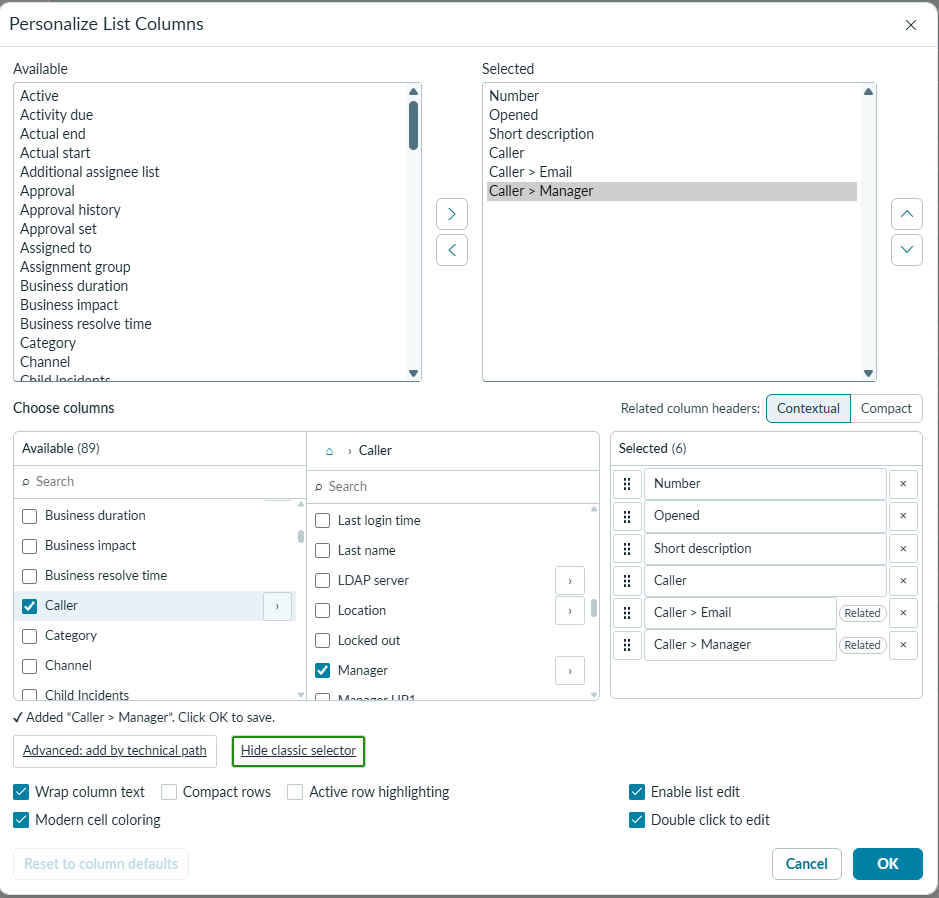
The Personalize List Columns dialog showing ServiceNow's classic Available and Selected lists above the extension's column chooser, with the same six columns selected in both
The classic selector and the chooser, side by side in one dialog.
2

Use

The new column lands right next to its parent, so Manager sits beside Caller. Click OK and it is saved to your own list layout, exactly like a built-in column. Choose Contextual headers (Caller › Manager › Email) or Compact (Email) in the chooser; the technical path stays in the header tooltip.
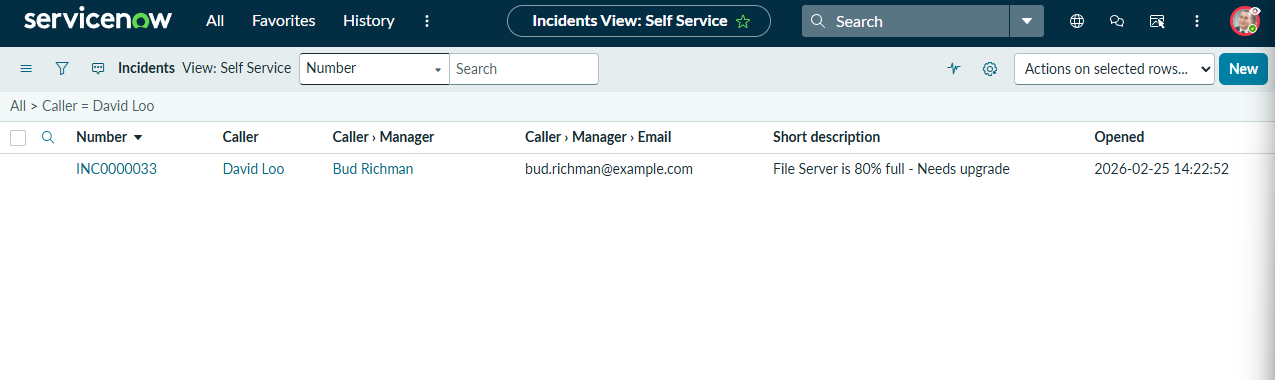
A ServiceNow incident list with a Caller › Manager column populated
Related values in the list, with the context in the header.
3

Export

Use ServiceNow's normal export. The related columns come along with everything else. No report to build, no admin to ask.
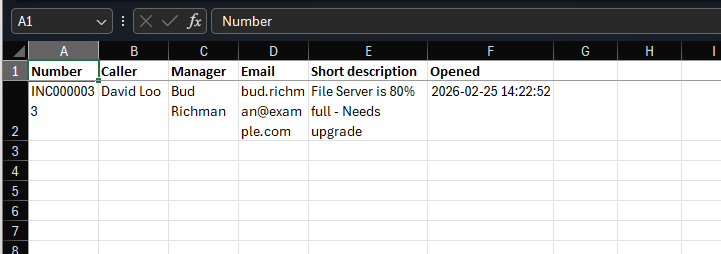
An Excel export showing Number, Caller, Manager, Opened and Short description columns
Straight to Excel.

Install

The existing Chrome Web Store and Microsoft Edge Add-ons listings are linked above. This page describes the v1.5.0 update; its new features will be available after the store updates are approved. Then open any classic ServiceNow list and click the gear (Personalize List Columns).

  1. Install from the Chrome Web Store or Microsoft Edge Add-ons.
  2. Open a list and click the gear (Personalize List Columns).
  3. Tick the fields you want; click › to browse into related records or catalog variables.
  4. Click OK. The column is yours.

If your organization opens ServiceNow at its own address rather than one ending in service-now.com, add that address in the extension's options and allow it when your browser asks.

Works in UI16 and in Next Experience with classic lists. Not for Workspace lists. Your instance must allow you to personalize list columns, and you only see values for fields you are allowed to read — the extension adds no access. Each related hop is an extra lookup, so keep long walks off very large lists.

What it doesn't do

  • No account.
  • No telemetry, analytics, advertising, or tracking.
  • No developer server.
  • No ServiceNow data sent to the developer or third parties.
  • No extra ServiceNow access — your existing permissions apply.

It communicates only with the ServiceNow instance already open in your browser, using your existing authenticated HTTPS session. It reads field names and labels from that instance to show you what you can add — and, for catalog variable columns, catalog item names, their questions, and how many records of each catalog item are in the list you are personalizing. It stores three display preferences using the browser's extension sync storage, which your browser may synchronize across your signed-in browsers; they contain no ServiceNow data. Privacy details.